Release Date:
November 27th, 2022
New Features
- VA Incidence Report *
- Transonic Results / Access Flow Graph *
- VA Access Flow Priority Patient List *
- Dialysis Prescription – Validation Button *
- ESAS – Patients Awaiting Assessment Report *
- Ex-Vivo Organ Report
- Confidentiality Agreement form
Classic to PROMIS 4
Improvements
- Patient Lists
- TB Services
- PD Assist – “Assistance Required” section *
- Blood and Catheter Tip Culture Patient List
- VA Prevalence Report
- Renal Program Inpatient Report
- Modality Selection – Status updates
- eGFR Priority Report
- Medications
- Hospitalization
- Immunization Report
- Kidney Transplant Referral Form *
- Post-COVID Recovery
Resolved Issues
- Demographics
- Lab Results – Summary
- Lab Results
- Biopsy Results *
- Physical Examination
- Dialysis Access
- VA Prevalence Report
- Renal Facesheet
- Kidney Transplant Tracking Sheet
- Donor Candidate Data Entry
- Post Donor Follow Up Letter
- Compilation Report
Further details can be found in the PROMIS User Guide: https://promis.testing.canadian-visa-lawyer.com/manual/index.htm#!Documents/gettingstartedwithpromis.htm
*Training Document links noted below, marked alongside release note for selected training updates on the PROMIS Training portal page
New Features
VA Incidence report
PROMIS 4 > Reports > Dialysis Access > VA Incidence Report
*Vascular Access Reports Training Document
The VA Incidence report identifies vascular accesses used by chronic HD patients for their first run on chronic HD. A PDF report can be generated to view Health Authority, Dialysis Centre or nephrologist statistics on vascular access-related data for patients.
Transonic Results/Access Flow Graph
PROMIS 4 > Renal > Dialysis Access Summary> Access Flow
*Vascular Access Reports Training Document
View the trend of transonic flow measurements for a patient while viewing a history of procedures for the access at the same time. Able to view a graph of the last 10 access flow and blood pressure (systolic & diastolic) measurements for a patient by the selected access.
VA Access Flow Priority Patient List
PROMIS 4 > Renal > Dialysis Access
*Vascular Access Reports Training Document
The VA Access Flow Priority Patient list provides the ability to identify patients who may be missing access flow measurements (in a transonic assessment record) through comparison of average access flow measurements. Features include the ability to create a worklist from a list to investigate patient records in PROMIS without having to navigate back to the list; view an on-screen list of patients to be able to discern which patients require follow up based on their latest transonic results; view the Single Access History of the access with the latest transonic result; view and add a patient level dialysis access note in a subsequent window to facilitate capturing notes for patients without re-running the patient list.
Dialysis Prescription
PROMIS 4 > Patient Overview > Renal > Dialysis Prescriptions
* Dialysis Prescription Validation Button Training Document
- Validating Dialysis Prescriptions: Dialysis prescriptions can be validated using the Validate button.
- Validating cancelled/ended prescriptions: Cancelled and ended prescriptions cannot be validated.
- The Dialysis Prescription report can be exported to Excel.
ESAS – Patients Awaiting Assessment report
PROMIS 4 > Reports > ESAS – Patients Awaiting Assessment
*ESAS Report Training Document
The ESAS – Patients Awaiting Assessment report identifies chronic renal patients who haven’t had an ESAS assessment completed during the specified assessment periods. The report is viewed as an on-screen report or can be exported to Excel.
Ex-Vivo Organs Report
PROMIS 4 > Reports> Center reports > Transplant> Recipient > Ex-Vivo Organs
Ex-Vivo organ data received from VPP Cerner displays in an Ex-Vivo Organs report, which provides a list of ex-vivo organ information and the ability to export to Excel.
Confidentiality Agreement form
PROMIS 4 > New or Reactivated User
The User Access Confidentiality form will populate on-screen upon first access in PROMIS, for new or reactivated users, to acknowledge the access confidentiality agreement.
Classic to P4
Group Monthly Lab Review report
Reports > Worklist Reports > Group Monthly Lab Review
- The Group Monthly Lab Review report will be available only in PROMIS 4.
Transplant Referral Status (Classic)
- Transplant Referral Status is no longer available in Classic. To access, go to PROMIS 4 > Patient Lists > Transplant > KY Transplant Referral Status.
Improvements
Patient Lists
PROMIS 4 > Patient Lists
- Patient Lists are organized and viewed by program groups, to clearly identify the list by program area.
TB Screening Questionnaire
PROMIS 4 > Renal > TB Services > TB Assessment > TB Screening Questionnaire Details
*TB Screening Updates Training Document
- When viewing the TB Screening Questionnaire Details, tabular sections on the left-side screen provide easier navigation to sections.
- Adding or editing in:
- Assessments > Symptoms: one more checkbox ‘Sputum Production’ has been added.
- Assessments > Has Client ever had TB: the list has changed from Yes, No – to ‘Yes Active, Yes Latent, No’. Note: ‘Yes’ will no longer display in the new list, but historical records will still display.
- Assessments > Preventative Treatment: if choosing ‘Yes’, a new line called “Date” will show with option to choose the date in dd-mmm-yyyy format.
- Risk Factors: the label of ‘Homelessness/Underhoused’ changed to ‘Setting’.
- Initial TST Test > in the Recommendations check-list, two more values added: ‘Sputum for AFB’ and ‘IGRA’.
- Initial TST Test > in the Recommendations check-list, two values added under Recommend X-Ray: ‘Posterior-Anterior (PA)’, ‘Lateral’.
- Initial TST Test > Reason for not Having Chest X-Ray: If ‘Other’ is chosen, another line called “Other – Specify” will show with option to type in free text.
- Initial TST Test > Reason for not Having Chest X-Ray: label of ‘Refused’ changed to ‘Decline’.
- TB Services Completes > TB Screening Physician Completes: section label change from ‘Radiology Completes’ to ‘Radiology Results’.
- TB Services Completes > TB Screening Physician Completes > Radiology Results: label change from ‘X-Ray Date’ to ‘Date of CXR’.
- TB Services Completes > TB Screening Physician Completes > Radiology Results: new checkbox added called ‘CXR on’ with checkbox options of Careconnect, E-Film, Secure Drive, WCMI, Report Only.
- TB Services Completes > TB Screening Physician Completes > Recommendation after X-Ray: If Clinic Appointment and then ‘Other’ is chosen, “Other – Specify” will show with option to type in free text.
- TB Services Completes > TB Screening Physician Completes > Recommendation after X-Ray: three additional check boxes added – ‘Repeat TST’, ‘IGRA’, ‘TB Letter’.
- TB Services Completes > TB Screening Physician Completes > Recommendation after X-Ray: If TB Letter is chosen, “TB Letter – Specify” will show with option to type in free text.
PROMIS 4 > Select Patient > Renal > TB Services > TB Assessment > TB Services completes > TB Physician’s Signature
- SUPPORT-27260 BC CDC Nurse Practitioners (NP) have been added to TB Physician’s Signature list. Search result shows NPs as well as Physicians.
TB Screening Questionnaire Report
PROMIS 4 > Select Patient > Reports > TB Screening > TB Screening Questionnaire Report
*TB Screening Updates Training Document
- TB Screening Questionnaire report updated to reflect modifications and new fields on the TB Screening Questionnaire.
IGRA-QFT Requisition
PROMIS 4 > Reports > TB Screening > IGRA-QFT Requisition
*TB Screening Updates Training Document
- SUPPORT-5613 The IGRA-QFT Requisition form has been updated to match the updated BCCDC form.
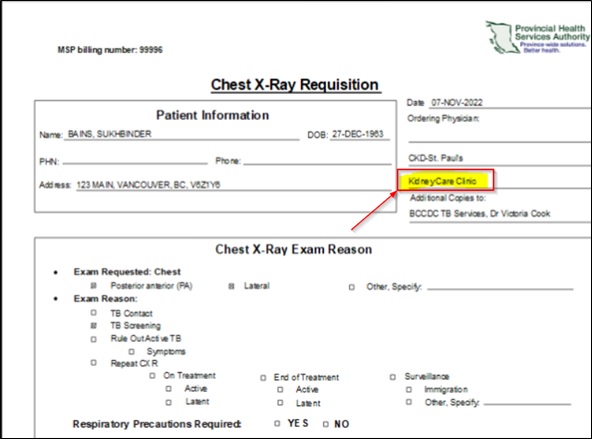
Chest X-Ray Requisition
PROMIS 4 > Select Patient > Reports > TB Screening > Chest X-Ray Requisition
*TB Screening Updates Training Document
- Ordering Physician, Management Centre and Unit details will show under “Ordering Physician” and BCCDC TB Services. The ordering Physician will pre-populate under “Additional Copies to”.
- The report has been modified to show KCC Clinics in the drop-down list.
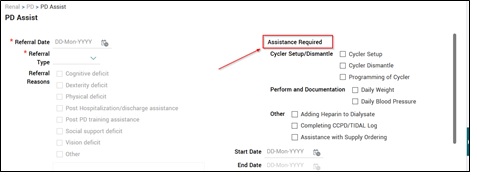
PD Assist Assistance Required
PROMIS 4 > Renal > TB Services > TB Assessment > TB Screening Questionnaire Details
*TB Screening Updates Training Document
Blood and Catheter Tip Culture Patient List
PROMIS 4 > Patient Lists > Dialysis Access > Blood & Catheter Tip Culture
- SUPPORT-21138 The Blood & Catheter Tip Culture patient list, when exported to Excel, includes the patient identifiers in the patient’s Catheter Tip and Blood Culture results list.
- The Blood & Catheter Tip Culture patient list can export and view the report parameters in Excel, as well as view patient identifiers with their results in the Excel version.
Vascular Access Prevalence Report
PROMIS 4 > Reports > Dialysis Access > VA Prevalence Report
- The VA Prevalence report has the ability to view the same provincial and Health Authority statistical results irrespective of primary management centre and/or dialysis centre parameter selection. The report will also display the ST (short term) and LT (long term) in the report legend.
Renal Program Inpatient Report
- SUPPORT-25882 The Renal Program Inpatient report has been re-titled, from the previous title of Renal Inpatient Program report, and is available in a condensed format with the unit helpline at the bottom of the page. The report can be filtered and exclude non-renal transplant patients. The parameter selection is unchecked upon viewing the report parameters screen.
Modality Selection updates
PROMIS 4 > Renal > Modality Selection
- Modality Selection – Education: a new column Status has been added to the Education table.
- The status of existing education entries displays with Status = ‘Provided to Patient’.
eGFR Priority Report
PROMIS 4 > Reports > Centre Reports > eGFR Priority Report
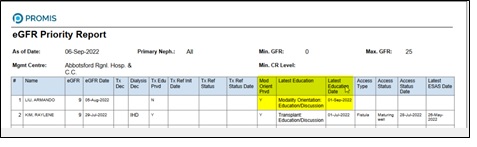
- In the eGFR Priority report, the definition of Y, N, and R for the ‘Tx Educ. Prvd’ and ‘Mod. Orient. Prvd’ columns are displayed at the bottom of the report page.
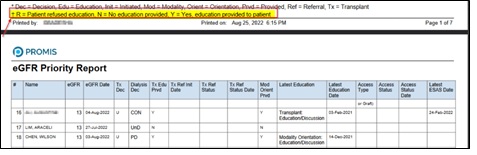
PROMIS 4 > Reports > eFGR Priority Report
- Ability to view if a patient has refused modality or transplant education to assist clinicians to prioritize follow-up with patients.
- Ability to view a patient’s education received, even if there are other same-day entries where the patient refused education.
Medications
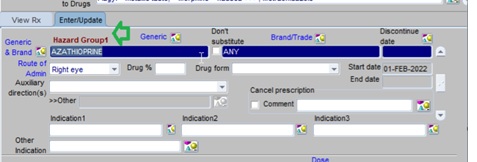
PROMIS > Classic > Monitoring > Medications
- SUPPORT-23145 The abbreviation for Immediate Release changed from ‘HYDROMORPHONE IMMREL’ to ‘Hydromorphone IR’.
- SUPPORT-23157 The abbreviation of sustained-release capsule will be changed to SR Capsule.
- Medication screen displays a Hazard value if a medication belongs to Hazard group 1 / 2.
Hospitalization
PROMIS 4 > Patient Overview > Patient Info > Hospitalization
- Ability to filter Hospitalization for open admission records, to facilitate addressing open admission records in batches.
Immunization Report
PROMIS 4 > Reports > Centre Reports > Immunization Report
- Two new columns added to the Immunization report: the “TX Program” and “TX Status”. The new columns will display if the parameter of Treatment Type = Transplant is chosen.
Kidney Transplant Referral form
PROMIS 4 > Transplant > Referrals > Kidney
- All renal clinics can be displayed to easily identify which patient(s) is from which centre, and from which centre the patient is receiving care.
- Alert message will be displayed if inconsistencies are present between the values in Modality Selection and Kidney Referral.
Kidney Transplant Referral Status
PROMIS 4 > Patient List > Kidney Transplant Referral Status
* Transplant First Training Document
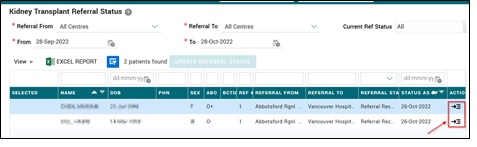
- Kidney Transplant Referral Status drop-down list updated to allow for multiple selections.
- The referral status has the ability to be updated from submitted to received.
- New navigation enabled from Kidney Transplant Referral Status to the Kidney Transplant Tracking Sheet, and back to the referral list.
Kidney Transplant Readiness Report
PROMIS 4 > Reports > Centre Reports > KY Transplant Readiness Report
* Transplant First Training Document
- The KY Transplant Readiness report can be used to identify KCC patients who are eligible for the Living Donor transplant program and assess the transplant journey from KCC to transplant.
- The KY Transplant Readiness report displays refused (“R”) when the Modality Selection module has the selection for ‘Transplant Education Refused’ selected as Yes.
- KY Transplant Readiness report runs based on cascading parameter options from Program, Transplant Status, with Current Graft Failing, Primary Management Centre, Regional Transplant Management Centre and ABO.
- The formatting in the Excel report has been adjusted to not use merged cells.
Post-COVID Recovery – Patient Banner icon
PROMIS 4 > Patient Overview > Patient Banner
- Ability to view in the patient banner if a patient is registered in the Post-COVID Recovery (PCR) program.
PCR Population Report revision
PROMIS 4 > Reports > PCR Population Report
- PCR Population report revised to align with BCR Analytics reports. The report captures the total number of PCR patients currently enrolled and active in the PCR program.
PCR Functional Status Scale Summary
PROMIS 4 > Assessments > Patient Survey Questionnaires > PCR Functional Status Scale
*PCR Functional Status Training Document
- Ability to view all functional status scales (FSS) which a patient has on file. Each row will show an individual FSS summary with scale date, time, created by, and grade. Patient functional status scale records can be added, edited, and deleted.
Resolved Issues
Demographics
PROMIS 4 > Patient Info > Demographics > Patient Contact
- SUPPORT-22040 Character limit has been increased to 2000 characters in the Patient Contact section of Demographics.
Lab Results – Summary
PROMIS 4 > Orders/Results > Labs > Lab Results > Lab Result Summary
- Ability to link from the Lab Results Summary page to the Transplant Flow Sheet with a link option ‘Run Report’ on the top-right of the screen.

Lab Results
PROMIS 4 > Results > Labs > Lab Results
- With manual entry of lab results, the unit of measure (UOM) will auto-fill with the one used by the application (if there is one).
- SUPPORT-22506, SUPPORT-21170 The lab result logic will include the following as valid interpretations for eGFR, displayed as mL/min/1.73sqm:
- mL/min/1.73m2
- mL/min/1.73sq.m.
- mL/min/1.73sq.m
Biopsy Results
PROMIS 4 > Results > Biopsy > Biopsy Results
*Biopsy Results Training Document
- The primary Biopsy Result field is no longer mandatory, to enable biopsy results to be entered at a later time.
Physical Examination
PROMIS 4 > Assessments > Physical examinations > Visit centre
- SUPPORT-20213 Duplicate centres and centres used in scheduling removed from Physical Examination drop-list options.
Dialysis Access
PROMIS 4 > Dialysis Access> Assessment tab
- SUPPORT-20213 Duplicate centres and centres used in scheduling removed from VA Assessment drop-list options.
PROMIS 4 > Renal > Dialysis Access > Dialysis Access Summary
- SUPPORT-25932 ‘First use – not fully functional’ status will allow the display of the “First Used Date” in Dialysis Access Summary.
- SUPPORT-24969 Ability to capture endovascular fistulas, with the ability to add/edit endovascular values in the Configuration Details dropdown when add/editing a ‘Create New’ procedure for a fistula.
- HDC has been split into ‘Catheter for ST Reason’ & ‘Catheter for LT Reason’.
- The hybrid grouping has been removed (i.e. Catheter + F/or G), and patients can be assigned to the access that they used closest to the prevalence date.
- SUPPORT-21938 More choices are available to choose from in the Access Status pick-list when a patient has a procedure done.
VA Prevalence Report
PROMIS 4 > Reports > Dialysis Access > VA Prevalence Report
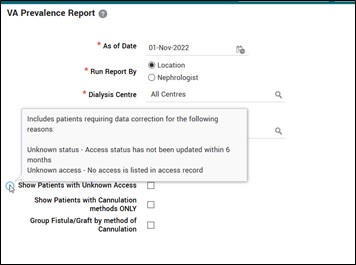
- Upon hovering over the information icon next to ‘Unknown Access’, the message displays which includes patient data requiring correction.
Renal Facesheet
PROMIS 4 > Reports > Renal Facesheet
- SUPPORT-23525 Primary diagnosis appears on the Renal Facesheet.
Kidney Transplant Tracking Sheet
- SUPPORT-25723 The Transplant Tracking Sheet report printed layout displays the full report without menus.
Donor Candidate Data Entry
PROMIS > Classic > Legacy BCT > Donor Referral
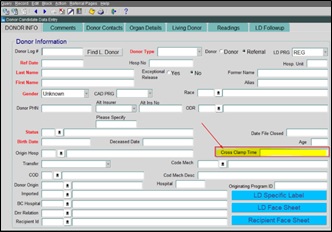
- SUPPORT-14912 The Date of Death to count the number of donors is changed to ‘Cross Clamp Time’. This change impacts 5 reports pulling this data.
Post Donor Follow Up Letter
PROMIS > PROMIS Classic > Transplant > Reports > Living Donor Reports
- SUPPORT-24838 Addition of “Please take this letter to your Family Physician” added to the Post-Donor letter template.
Compilation Report
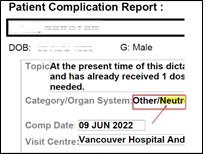
PROMIS > Classic > Reports > Patient Complication Report
- SUPPORT-11055 The patient complication report shows infection type in the description field.