
Release Date
July 22, 2021
New Features
- Transplant: Deceased Donor
- Donor Chart
- Donor Chart Reports
- Transplant: Heart Outgoing Offers & Report
- Transplant: Heart HSH Incoming Offers & Report
- Post-COVID 19 Recovery (PCR) Reports
Classic features moved to PROMIS 4
Classic – Retiring from Menu in Classic
Improvements
- Transplant Form Updates in Classic
- PROMIS 4: Patient Search
- Immunizations History & Report
- Integrated Assessment: updated based on HD/HHD Prescription changes
- Post-COVID 19 Recovery (PCR)
- Other Improvements
Resolved Issues
New Features
Transplant: Deceased Donor
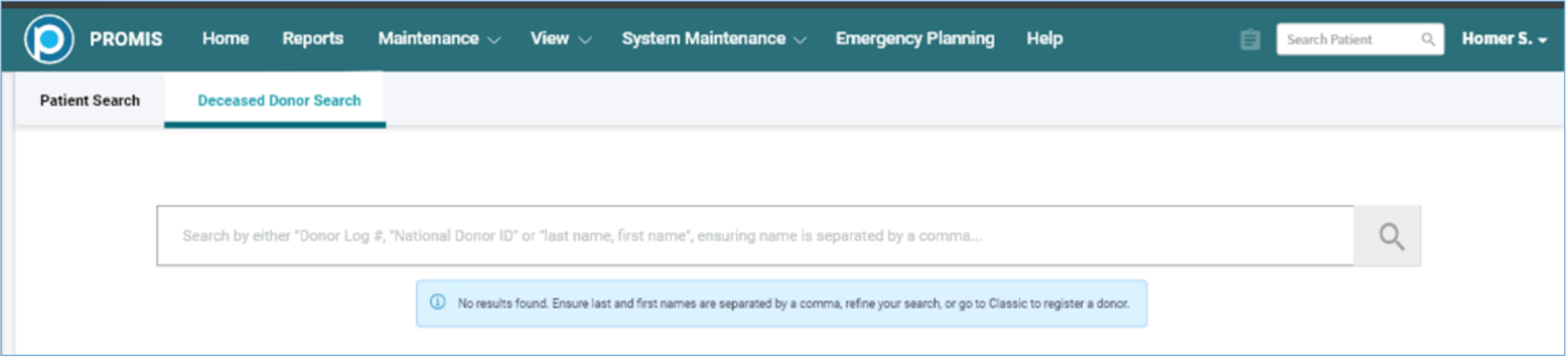
PROMIS 4 > Home > Deceased Donor Search
Those with access to Deceased Donors will see a Deceased Donor Search tab. Deceased Donors can be searched under this tab, with the same search functionality as with renal/transplant patients.
- Deceased Donor’s patient charts can be found in PROMIS 4 Decease Donor home navigation page. Donor registration remains in Classic.
- Search criteria includes Donor Log #, National Donor ID or Last Name and/or First Name, ensuring “name” is separated by a comma. Search results include donor’s Name, DOB, DOD, donor log # and National Donor ID.
- Donor Quick Search: Within the Donor context, the quick search in the upper right corner of the screen can be used to quickly search for another donor. All donor search results are displayed on the search results page.
PROMIS 4 > Donor Chart
- Donor chart: The donor chart can be accessed from the search results in PROMIS 4.
Note: The screen will not be fully functioning operationally until IPOS provincial heart sharing functions are turned “on” in a future release.
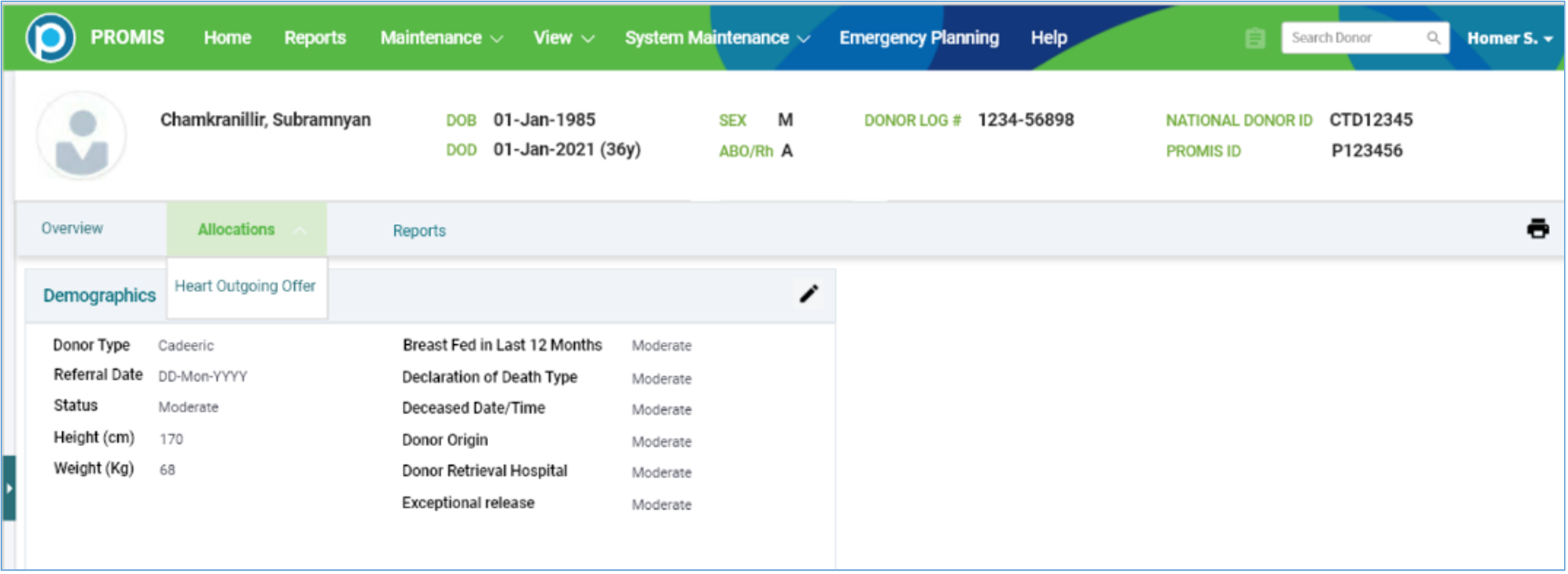
- Donor Chart contains:
- Donor Banner
- Donor specific menu
- Overview: defaulted Demographics landing page
- Allocations menu
- Reports, with specific donor reports
- Print Icon
- Banner displays key deceased donor identifiers.
- Chart Overview > Demographics includes key information about the donor.
- Worklist panel is not available in Donor Chart.
- The Deceased Donor chart has been created with visual differences between Patient and Donor context to provide a visual separation between patients and donors.
- Printing donor details: printing functionality where user can print the page with what can be seen on the screen. In the donor print view, the following can be seen:
- Return to Editable page hyperlink; action directs back to the Deceased Donor Chart.
- Donor banner: Donor Name, DOB, DOD, Sex, ABO, Donor Log #, NATIONAL DONOR ID.
- Donor overview: currently just displaying Demographics.
PROMIS 4 > Deceased Donor Search > Donor Chart > Reports
- Donor level report menu will navigate to the report for the donor with select parameters. The report when run will display in the report tray.
- Donor Immunology report is available in PROMIS 4. The report remains accessible in Classic, with a message indicating the report’s navigation in PROMIS 4.
Transplant: Heart Outgoing Offers
Canadian Blood Services (CBS) has initiated a project with the Canadian provinces for a linked system to share high-status hearts between provinces through their CTR system. Changes have been made in PROMIS in this release. Some modules will not be fully functioning operationally until the provincial heart-sharing functions are turned “on” in a future release.
PROMIS > Centre Reports > Transplant > Donor > Heart Allocation Donor List
- Heart Allocation Donor List: The report generates and displays registered BC deceased donors in the selected time-frame. Note: The report will not be active and pulling data until IPOS provincial heart sharing functions are turned “on” in a future release.
Heart HSH Incoming Offers
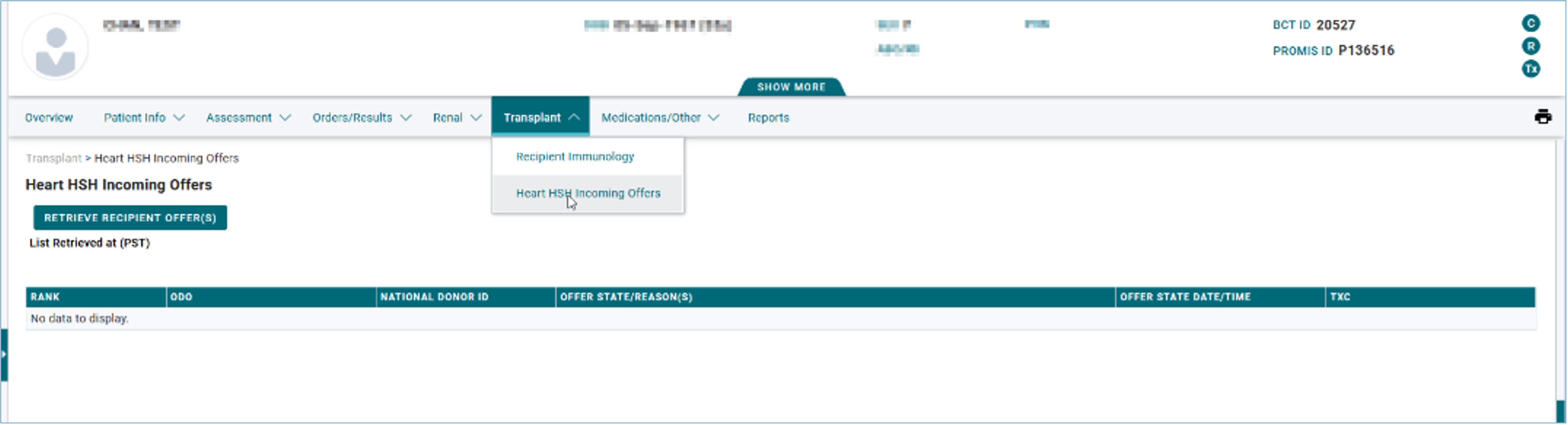
Patient context > Transplant > Heart HSH Incoming Offers
- Heart HSH Incoming Offers is viewable in PROMIS 4. The form pulls heart offers for the selected recipient from the Canadian Transplant Registry (CTR). Note: The screen will not be active, pulling data onto the on-screen form, until IPOS provincial heart sharing functions are turned “on” in a future release.
PROMIS 4 > Reports > Centre Reports > Transplant > HSH Offers Recipient List
- HSH Offers Recipient List: A report showing the number of recipients for whom the HSH Offer data is pulled from CTR. The report will not be active and pulling data until IPOS provincial heart sharing functions are turned “on” in a future release.
Post-COVID 19 Recovery (PCR) Reports
PROMIS 4 > Reports > Centre Reports > COVID-19 > PCR Population and Patient List
- Population Report displays active patients in PDF, Excel or HTML formats by selected parameters.
- Date range
- Clinic
- Hospitalization
- ICU
- Research consent
- Questionnaires completed
- Diagnostic results available
- Clinic visit
- Mean QoL score
- Accepted referrals by qualifying referral criteria
- Declined referrals by disqualifying criteria
- Patient List report displays patient list as of a selected date including:
- Patient name & PHN
- Clinic
- Referral date
- Referral reason
- Symptom onset
- Hospitalization
- ICU
- Research consent
- Clinic visits
- Deactivation date
- Deactivation reason
- Information “Help” icon directs to PCR report manuals in the User Guide.
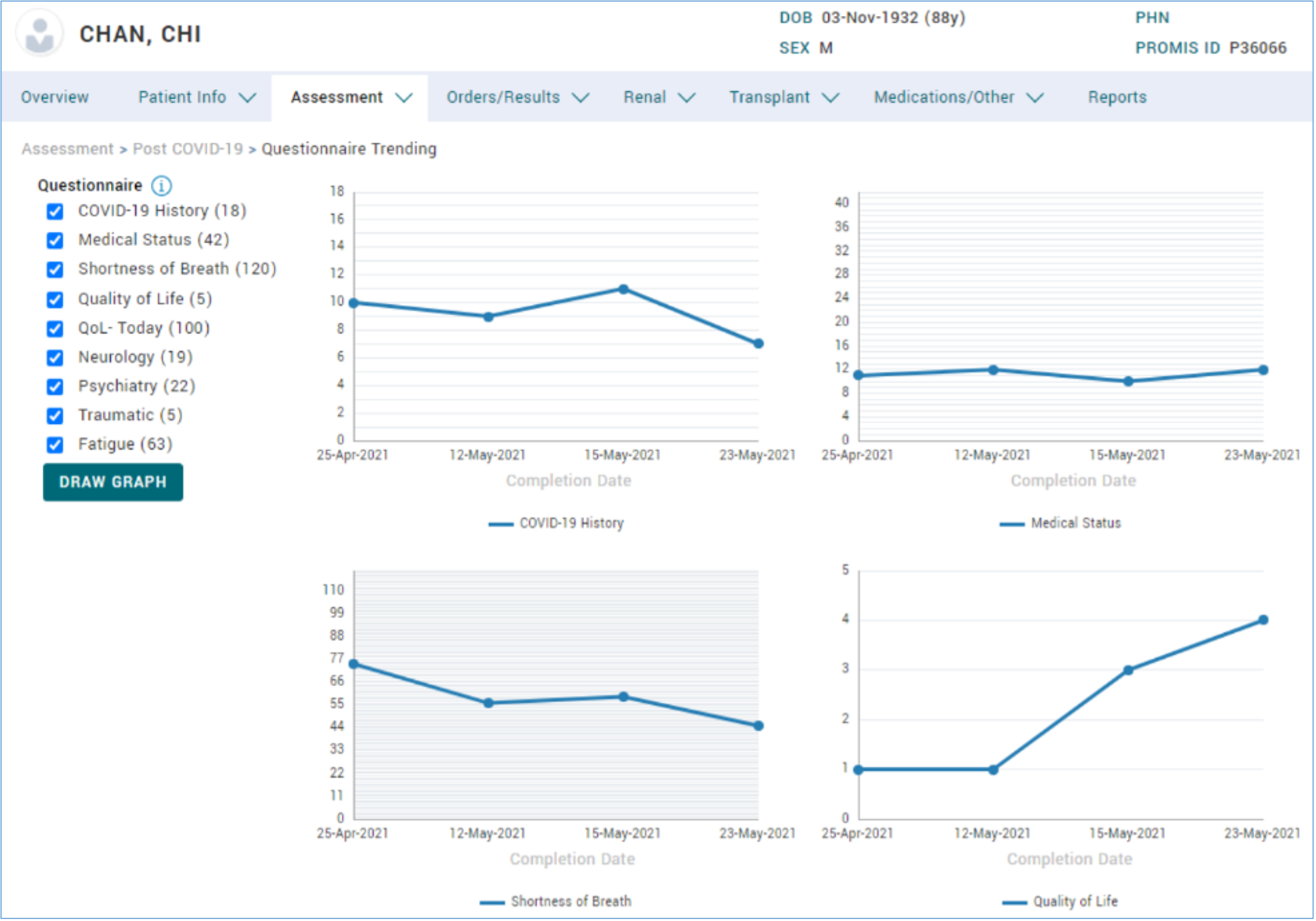
PROMIS 4 > Patient Chart > Assessment > Post COVID-19 > Questionnaire Trending
- Questionnaire Trending is accessible from Post-COVID-19 menu and displays health trends for questionnaire sections. Each row displays the total score for each category.
- COVID-19 History
- Medical Status
- Shortness of Breath
- Quality of Life
- QoL- Today
- Neurology
- Psychiatry
- Traumatic
- Fatigue
Classic features moved to PROMIS 4
Vascular Access (VA)
Dialysis Access module, which encompasses HD and PD workflows, moved from Classic to PROMIS 4. Updates in PROMIS 4 include the following.
Dialysis Access Summary
PROMIS 4 > Patient’s Overview > Renal > Dialysis Access
- Dialysis Access Module: The Dialysis Access module can be accessed from the Dialysis Access widget in the Patient’s Overview in PROMIS 4.
- Viewing Dialysis Access: A patient’s Dialysis Access History is viewed on the Dialysis Access Summary page.
- Highlighted Access: The current access is highlighted when returning to the Summary page.
- Filtering Dialysis Access: The Dialysis Access History can be filtered to show HD, PD, All Records, and Inactive Access.
- Navigating to Document History: A button to navigate to the Document History module is available in the Dialysis Access Summary page.

- Selected Dialysis Access Details: Information relating to Access Type, Body Side & Location, Intended Use, Created On is displayed on the Access Details page when an Access is selected on the Summary page.
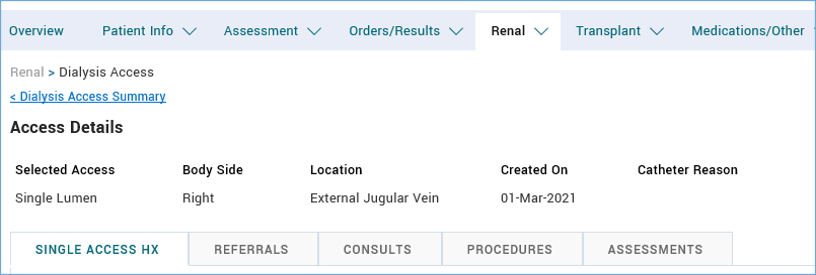
Catheter Reasons
PROMIS 4 > Patient’s Overview > Renal > Dialysis Access > HD tab
- Reason for Catheter Usage: Adding a ‘Create New’ procedure record, a Reason for a Catheter use at the time of insertion can be added.
- A Reason for Catheter use post-insertion can be added.
- Selecting Catheter Reasons: A reason for catheter procedure and catheter referral can be added.
- Catheter Reason Update Alert: An alert is sent when the reason for catheter use is updated.
HD Dialysis Access Notes
PROMIS 4 > Patient’s Overview > Renal > Dialysis Access > Notes
- Selected Access Notes: “All Access Notes” can be accessed from each event on the Summary page.
- Notes for Access types: All notes relating to a selected access can be viewed in the Single Access History Summary page. Each note’s header displays the Procedure Name, Event Name and Author.
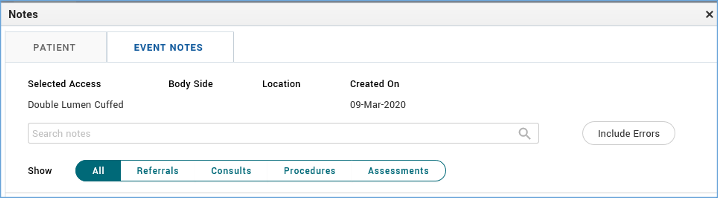
- Adding Notes: Patient notes can be added in the Notes > sub menu ‘View VA Patient Notes’, in the upper right of the page from all DA pages.
- Notes and Signatures: Notes for each patient’s access and the signing details can be viewed on the Notes summary.
- Viewing Notes: Each note can be viewed in the ‘View VA Patient Notes’ which displays each note.
- Adding Notes to Events: Notes can be added and viewed to an Event in the details page. Notes added cannot be edited and deleted.
- Filtering Notes: Notes on the ‘View VA Patient Notes’ summary page can be filtered to display all or based on the type of the event (e.g. Referral, Procedures, Assessments).
- Flagging Notes in Error: A Note can be flagged or unflagged as an error on any note entered. Notes in error are hidden from view until the ‘Include Errors’ button is selected.
- Filtering Errors in Notes: Flagged errors can be filtered in Notes, and notes with specific text can be searched.
- Deleting Notes: A note associated with an event can be deleted when deleting the corresponding event.
Single Access Hx
PROMIS 4 > Patient’s Overview > Renal > Dialysis Access > HD tab > any access record > Single Access Hx
- Viewing Single Access Events: Events for a selected access type are displayed on the Single Access Hx Summary page. Events are filtered by procedure through the ‘Filter Procedure’ selection on the right side of the page.
- Hovering over the information icon next to the date in Single Access Hx page, the number of days since last procedure or assessment with the same type is displayed. Note this only appears for certain assessments and procedures.
- Procedure: X days = date of current (procedure) – date of latest (procedure)
- Assessment: X days = date of current (assessment type) – date of latest (assessment type)
Referrals
PROMIS 4 > Patient’s Overview > Renal > Dialysis Access > HD tab > any access record > Referrals
- Creating Referrals: A referral for any selected access can be created.
- Changing Access Status: The access status can be changed when there is a procedure or a consult tied to it.
- Referral History: A history of referrals for the selected access can be viewed on the Referrals Summary page.
- Referral Details: The details of a referral for a selected access can be viewed in the Referral Details page.
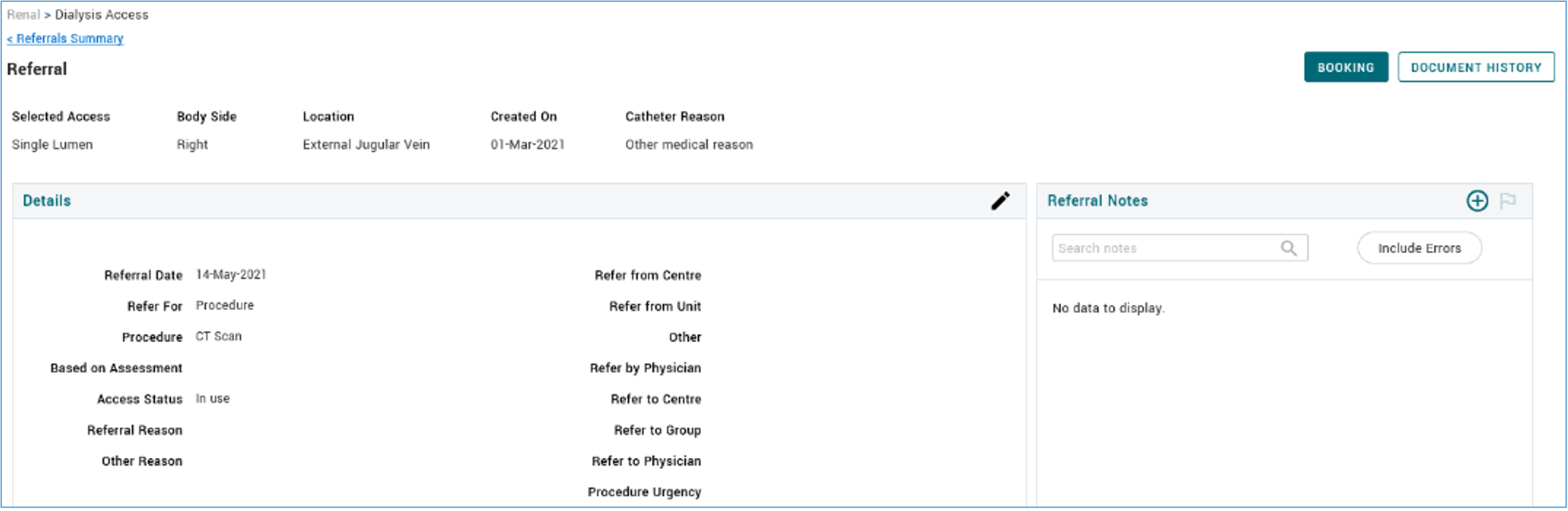
- Editing and Deleting Referrals: A referral can be edited and deleted through the edit (pencil) icon.
- Linking Referral Event: An event (referrals/consults) can be linked to another event at the time of creation or editing.
- Linking Referrals to Consults: A referral can be linked to only one consult.
- Access Type Field in Referrals: The access type field is set to the access type in the associated event if the procedure selected is “Create New” and there is a referral/consult in the ‘Based on Referral/Consult’ field.
- Access Update in Referrals: The access field is updated when a referral for creating a new access is changed.
- Validation of Referral Dates: The referral date should be before the date of the consult of a procedure associated with that referral.
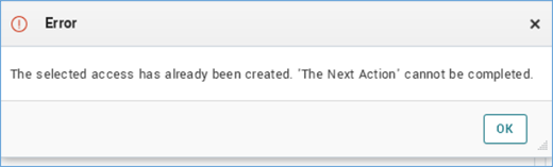
- Error Message: An error is displayed when a user tried to create a new procedure in a referral or consult and a “Create New” procedure in a referral/consult record already exists.
- Changing Referral Status: A referral can be marked as ‘On Hold’ on the bottom of the selected Referral Details page. A Referral status of ‘On Hold’ is automatically changed to ‘Cancelled’ after one year.
- Inactivating a Cancelled Referral: A cancelled referral can be inactivated as long as it is not tied to another event.

- Reactivating a Referral: A deactivated Referral can be manually or automatically reactivated. An automatic reactivation occurs upon selecting a cancelled or on hold referral and editing the ‘Based on Referral(/Consult)’ field. The following text displays “Note: The selected referral is currently on hold or cancelled and will be reactivated upon saving this record”. Upon saving the record, the Referral is reactivated.
- Reactivation of Linked Records: When creating a consult or procedure, the system will reactivate a cancelled/on hold event if a linked record exists.
- Referral Cancelled Reasons: Reasons for cancellation of a referral cancelled in Classic can be viewed in the Referrals Details page in PROMIS 4.
Booking Appointments
- Booking Appointments: An appointment at a Vascular Access Clinic or Intervention Radiology can be booked, and multiple bookings can be created for each referral using the ‘Booking’ button on the Referrals Details page.

- Saving Appointments: Appointments added or edited through the booking modal can be saved by selecting the “Save” button and a message indicating a successful save is displayed.
- Editing and Deleting Bookings: An appointment entered in error can be edited or deleted by selecting the Booking button.
Consults
PROMIS 4 > Patient’s Overview > Renal > Dialysis Access > HD tab > any access record > Consults
- Creating Consults: A consult for a specific HD access can be created in the Dialysis Access module. A consult for Dialysis Access can be added by selecting the “Add” button.
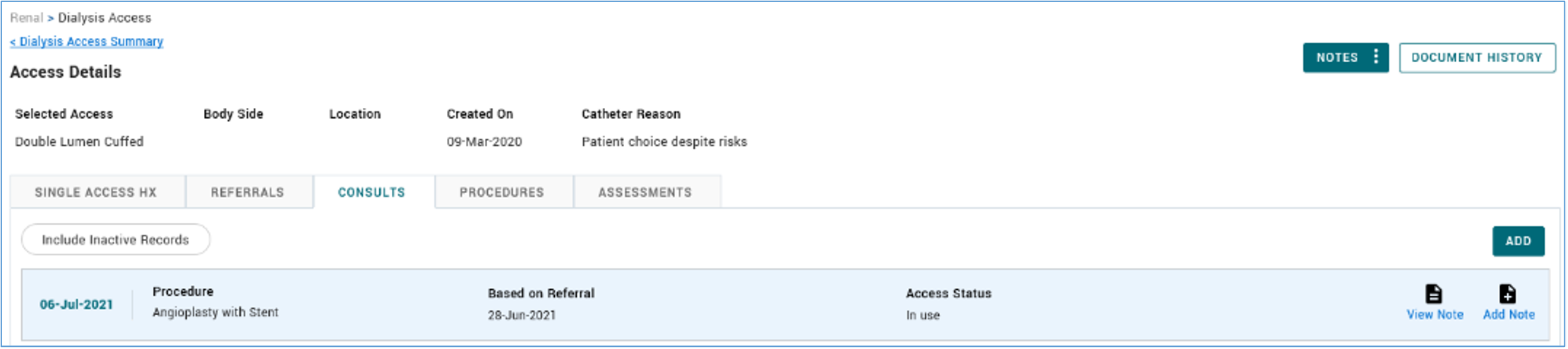
- Dialysis Access Consults: A summary of all HD Dialysis Access consults can be viewed in the Dialysis Access module.
- Dialysis Access Consult Details: The details of all HD Dialysis Access related Consults can be viewed in the Details page.
- Unsuitability Reasons for Access: A list of values to select reasons for unsuitability for access creation is available.
- Error Messages for Adding Consults: Appropriate error messages are displayed when a consult is added with the following:
- A mandatory field is not filled.
- Saving a non-post-terminate consult whose date is greater than the termination date.
- Saving a consult with non-terminating access status whose date is greater than termination date.
- Saving a consult with terminating access status whose date is earlier than an existing event.
- Consult Date Validation: The consult date must be on or before the procedure date associated with this consult.
- Access Type Field: The access type field in the “Create New Access” form is the same as the access type in the referral.
- Linking Consults: Consults can be selected from the “Based on” field when adding/editing a consult so that a referral/consult can be linked together.
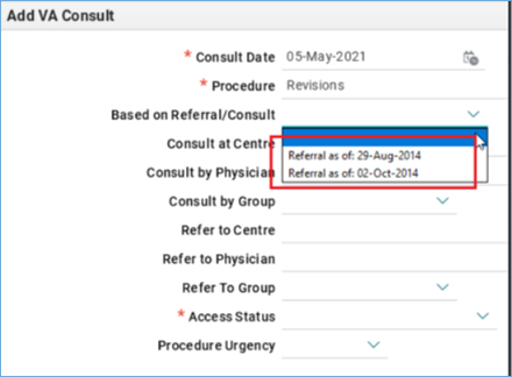
- Procedure Date Validation: A procedure cannot be set to a date after the access termination date.
- Editing and Deleting Consults: Consults can be edited, and a consult can be deleted provided that there is no procedure associated with it.
- Cancelling a Procedure: A Procedure can be cancelled from the bottom of the Consults Details page.
- Changing Procedure Status: A procedure status of n Hold’ can be selected from the bottom of the Consults Details page. The status of ‘On Hold’ is automatically changed to ‘Cancelled’ after a year.

- Reactivating a Procedure: A deactivated procedure can be manually or automatically reactivated. An automatic reactivation occurs upon selecting a Consult with a cancelled or on hold procedure and editing the ‘Based on Referral/Consult’ field. The following text displays: “Note: In the selected consult, the procedure is currently marked as on hold or cancelled. The procedure will be reactivated upon saving this record”. Upon saving the record, the procedure is reactivated.
- Reactivation of Linked Records: When creating a consult or procedure, the system will reactivate a cancelled/on hold event if a linked record exists.
- Procedure Cancelled Reasons: Reasons for cancellation of a procedure cancelled in Classic can be viewed in the Consults Details page in PROMIS 4.
Procedures
PROMIS 4 > Patient’s Overview > Renal > Dialysis Access > HD tab > any access record > Procedures
- Creating Procedures: A procedure for a selected access can be created by selecting the “Add” button.
- Viewing Procedure Details: Details of a procedure can be viewed in the ‘Procedure Details’ page.
- Editing and Deleting Procedures: A procedure can be edited and deleted upon selecting a procedure and proceeding to the Details page.
- History of Procedures: A history of procedures for a selected access can be viewed in the Summary page.
- Infections in Procedures: The Procedure Reason list of values does not include ‘Infection Confirmed’ since infections are identified during an assessment.
Assessments
PROMIS 4 > Patient’s Overview > Renal > Dialysis Access > HD tab > any access record > Assessments
- Creating Assessments: An assessment for a selected access can be added by selecting the “Add” button.
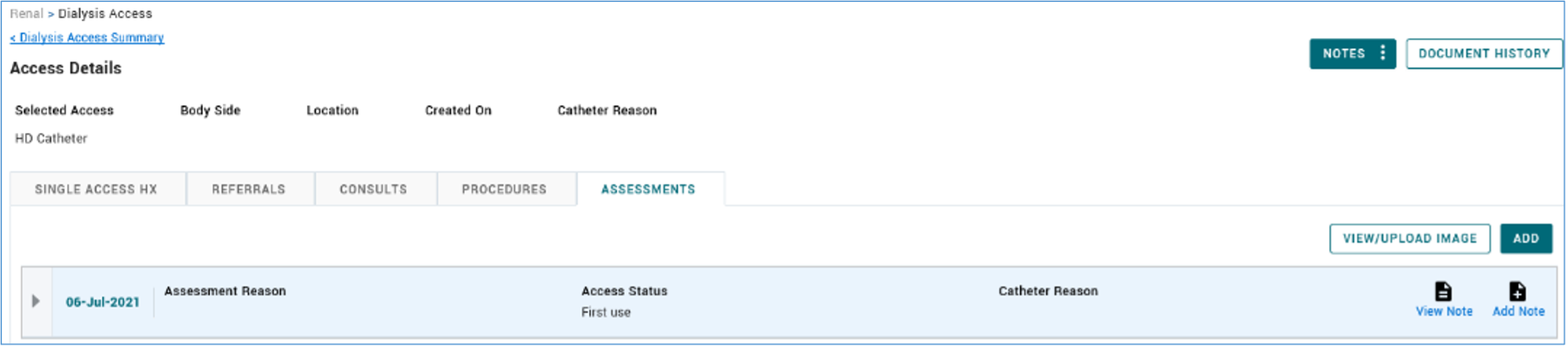
- Assessments Summary: A history of Assessments for a selected access can be viewed on the Single Access Hx page.
- Viewing Assessments: Assessment details can be viewed in the Assessment Details page.
- Editing and Deleting Assessments: An assessment can be edited and deleted upon selecting an assessment and proceeding to the Details page.
- Deleting Assessments: An assessment for a selected access can be deleted as long as no referral is associated to it.
- Adding/Editing/Deleting Assessment Types: Assessment types and the items assessed can be added, edited and deleted from an assessment in the Details page.
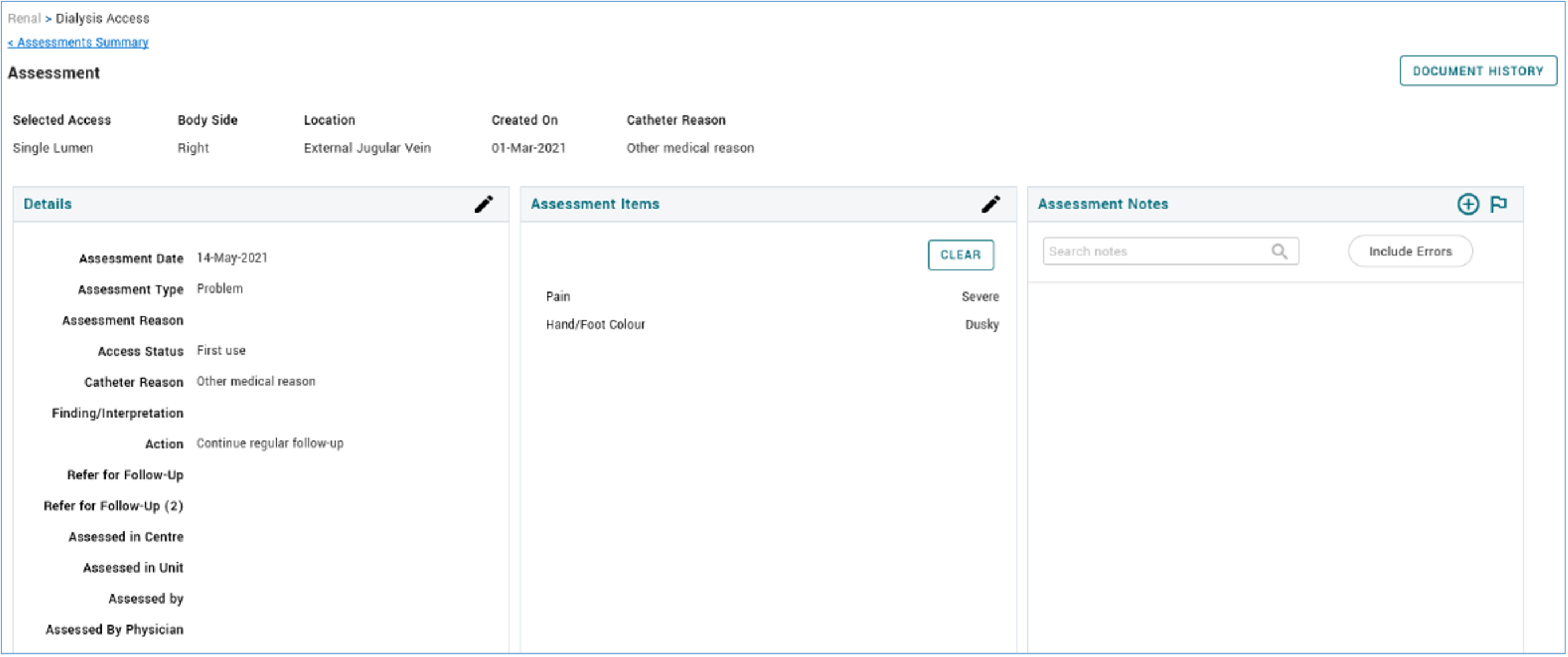
- Items in Assessment: Items in Assessment can be selected and saved through the Add (pencil) icon in the ‘Assessment Items’.
- Validation Rules for Assessments: following are rules for validating assessments.
- An Assessment cannot be deleted if there is a referral linked to it.
- A non-post-terminate assessment date must be less than the access termination date.
- An Assessment dated greater than the access termination date cannot have a non-terminating access status.
- The date of an event with a terminating access status must be greater than the date of an existing Event with a non-terminating access status.
- Once an Assessment has been tied to a Referral, the assessment date must be less than or equal to the referral date.
- Linking Assessments and Referrals: An Assessment can be linked to two different Referrals.
- Assessment Date Update: The “Based on Assessment” date in a Referral is updated when a change is made to the assessment date of the Assessment tied to that Referral.
- Linking Assessments to Other Events: An Assessment can be linked to another Event at the time of creation or editing.
Images Attached in Assessments
PROMIS 4 > Patient’s Overview > Renal > Dialysis Access > Assessments
- Images for Assessments: Images for Assessments can be uploaded, viewed, and deleted on the Assessments Summary page.
- VA Assessment Record: An image added to Dialysis Access can be deleted.
- Viewing Pictures in Assessments: Pictures uploaded into Assessments in Dialysis Access can be viewed.
Activate/Inactivate
- Filtering Inactive Events: Inactive events can be filtered in the Single Access Hx, Referral Summary page, and Consults Summary pages.
- Inactive Records: Inactive records are excluded from the Dialysis Access Summary page by default.
Vascular Access Reports
Single Patient: PROMIS 4 > Patient’s Overview > Reports
Centre Reports: PROMIS 4 > Reports > Centre Reports > Dialysis Access
Worklist Reports: PROMIS 4 > Reports > Worklist Reports
- Access Procedures Report: The report can be generated, pulling together information regarding the procedures done in-centre, procedure, access type and patients. The report can be filtered by the centre where the procedure is performed. The report is linked for easy access to the PROMIS User Guide.
- Vascular Access Appointment Booking Report: The report generates and displays the dialysis access appointments which have been booked through the module. The report is linked for easy access to the PROMIS User Guide.
- Infection Rate Report: The report can be generated in a PDF format, pulling related infections rates amongst chronic dialysis patients at a centre. The report is linked for easy access to the PROMIS User Guide.
- Patient Access Review Report: The report generates and displays the current and historical access of a patient. The report is linked for easy access to the PROMIS User Guide.
Dialysis Prescription Module: HD/HHD/PD
HD, HHD, PD Prescriptions module moved from Classic to PROMIS 4. Updates in PROMIS 4 include the following.
PROMIS 4 > Patient Record > Renal > Dialysis Prescription
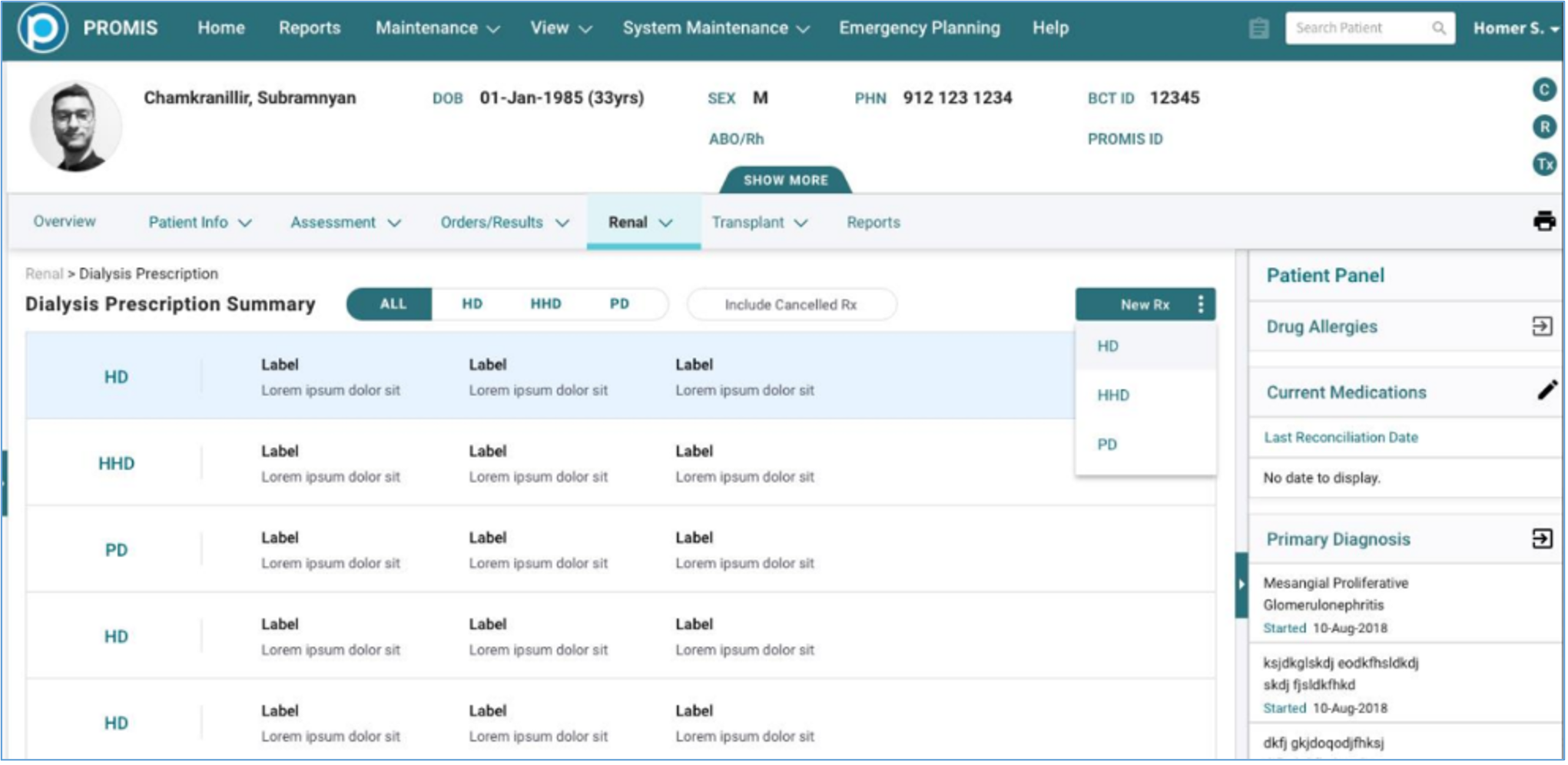
- Dialysis Prescription Summary Widget: The dialysate fields HCO3, CA, MG, K, NA allow fractions “/” and decimal “.” numeric entry. Updated value format displays in the summary widget.
- Dialysis Prescriptions Summary Page: Summary page displays history of patient’s prescriptions at a glance, in chronological order based on start date with latest on top. Columns display key values based on modality’s prescription type.
- Prescriptions can be filtered by modality type and include Cancelled prescriptions which are excluded by default.
- HHD Dialysis Prescriptions, with HHD NxStage machine:
- Warmer and AK98 dialysis machines added.
- Order fields can be entered when Dialysis Machine is selected as NxStage or NxStage w/ Warmer.
- Backup Order can be viewed while adding an HD prescription.
- Order is editable from Add and View modes, while the prescription is open.
- When reason for order change is ‘Other’, the ‘Other – Specify’ is required.
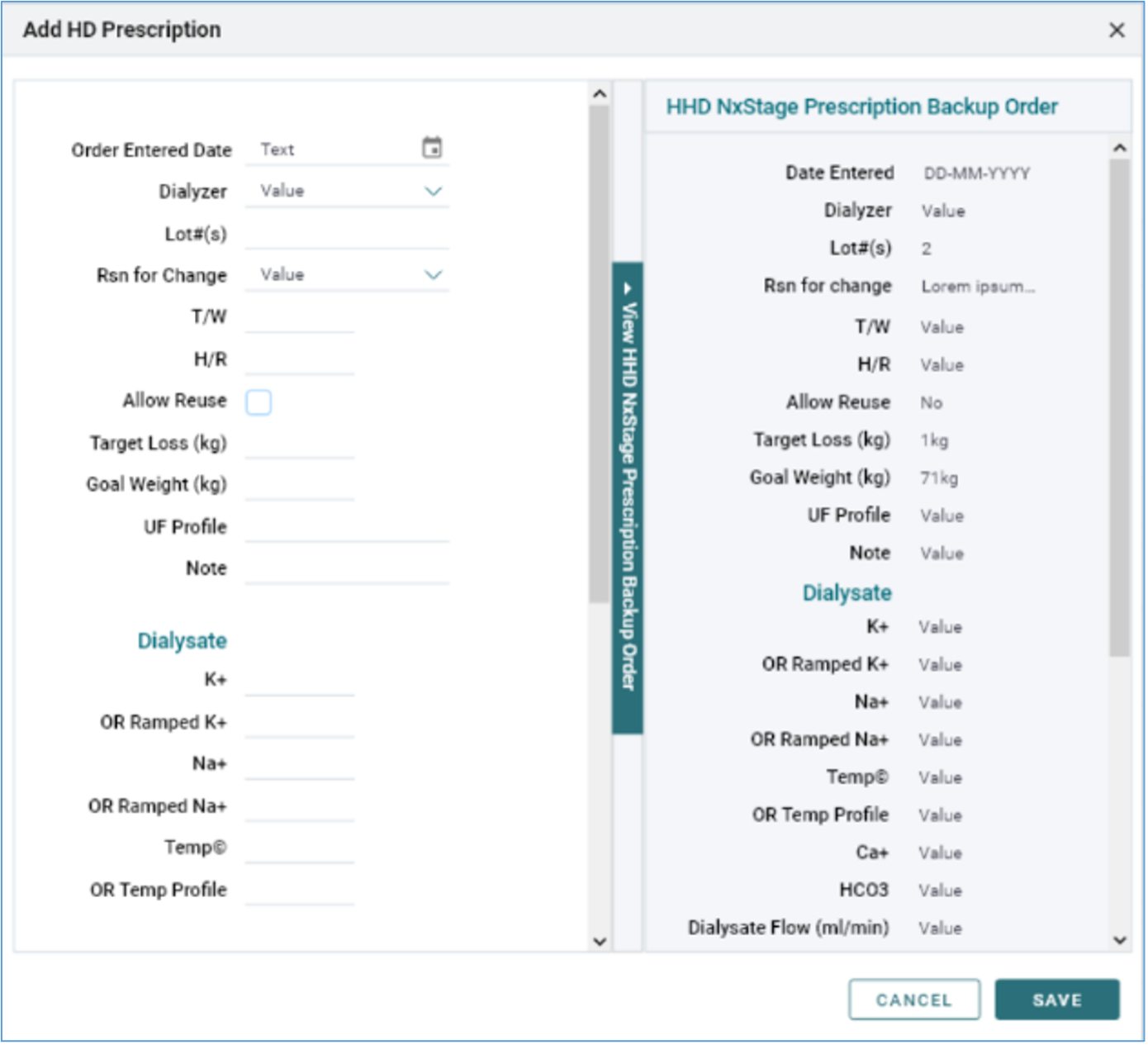
- Prescription end date for HD, and the HHD AK and HHD NxStage machines prevents errors such as dating before start date.
- PD Prescription former navigation PROMIS 4 > Patient Chart > Renal > Dialysis Prescription (PD) has been disabled. PD Prescriptions are also under Dialysis Prescriptions.
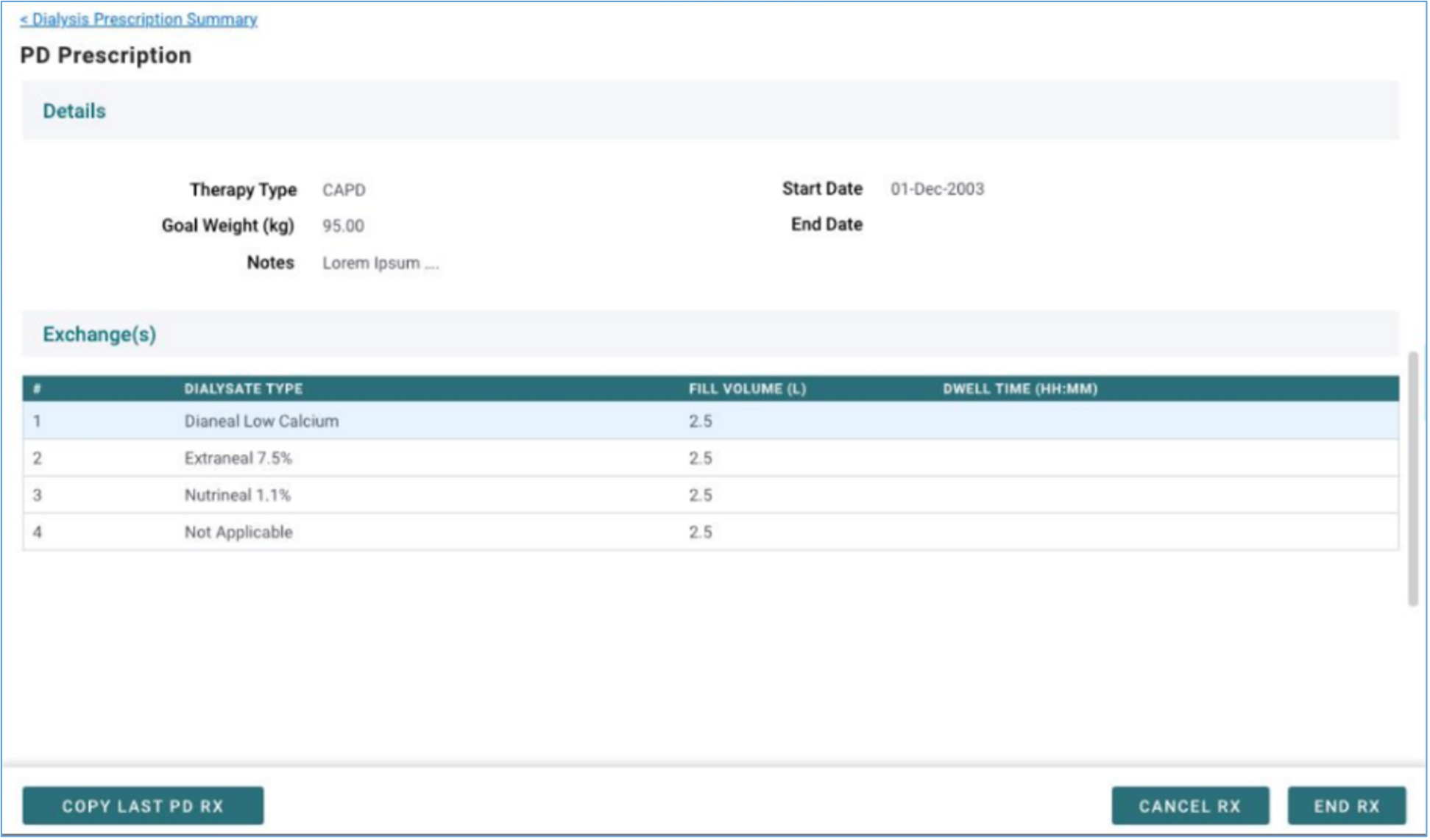
- PD Prescription designed to match HD/HHD Prescriptions including:
- ‘Copy Rx’ displays on bottom left of View Details page (formerly in Add screen).
- ‘End/Cancel’ prescription change returns to View Detail page (formerly returned to the Summary page).
- PD View Details page visual design includes Details and Exchanges(s) headers.
Classic – Retiring from Menu in Classic
- HD/HHD Dialysis Prescriptions forms removed from within the Dialysis Status module in Classic > Treatment > Dialysis > Status. Dialysis Prescriptions are now in PROMIS 4.
- Dialysis Access Menu in Classic: The Dialysis Access module will no longer be accessible in Classic. Dialysis Access is now accessible in PROMIS 4.
- Dialysis Access Reports in Classic: The following Dialysis Access reports will no longer be accessible in Classic. The reports are now accessible in PROMIS 4.
- Vascular Access Procedures report
- Vascular Access Appointment Booking report
- Infection Rate report
- Patient Access Review report
- Dialysis Transfer Waitlist, Dialysis Waitlist-IAMHD in Classic: The following message is displayed when selecting the menu items in Classic: “Navigate to PROMIS 4 to access Dialysis Access.”
Improvements
Transplant Form Updates in Classic
Canadian Blood Services (CBS) has initiated a project with the Canadian provinces for a linked system to share high-status hearts between provinces through their CTR system. Some changes and updates have been made in PROMIS in the back-end which are not visible. The following are changes which will be visible in the forms in Classic.
Transplant: Outgoing Offers
Classic > Transplant > Donor > Outgoing Offers
- Donor Outgoing Offers form renamed menu name to reflect specifically for Kidney or Pancreas-Kidney programs. ‘Outgoing Offers” is renamed ‘Kidney Outgoing Offers’.
- The Kidney Donor Outgoing Offers form on-screen message is updated to reflect ‘Kidney’.

- Data field in Donor Allocation form: data-field called CBS cPRA is added into Kidney Donor Outgoing Offers forms in Classic to view CBS cPRA data for matched recipients.
- Donor Outgoing Offers form: new withdraw reasons: withdraw offer reason ‘RERUN ALLOCATION’ can be selected in the Modify Offer form.
- Warning Message: When the Withdraw Offer is accepted for a donor in the Donor Outgoing Offers form, and the Re-Run Allocation is selected as the Withdraw Reason, the PROMIS warning message will display: ‘Once an offer is withdrawn NO new offers can be made. This action will disable the allocation”. PROMIS will not allow an offer to be made to another recipient in the allocation.
Transplant: HSP Incoming Offers
Classic > Transplant > HSP Incoming Offers
- HSP Incoming Offers form renamed menu name to reflect specifically for Kidney or Pancreas-Kidney programs.
- Title of the form ‘HSP Incoming Offers’ is renamed to ‘Kidney HSP Incoming Offers’.
- The following changes have been made to ‘Cancel-Acceptance and Declined Reason(s)’ list:
- ‘Re-Run HSP Allocation’ is replaced with ‘Re-Run Allocation’
- ‘Deferred’ has been added
Transplant: Activation
Classic > Transplant > Activation
- Title of data-field ‘HSP Eligible’ is renamed to ‘HSH Eligible’ in the Activation form, when Transplant Heart program is selected.
- Activation messages for eligible Recipient in CTR:
- If a recipient is added to CTR in Transplant Heart program and HSH eligible is pulled as Yes, then PROMIS displays message ‘Recipient is HSH eligible’.
- If a recipient is added to CTR in Transplant Kidney or Pancreas-Kidney program and HSP eligible is pulled as Yes, then PROMIS displays message ‘Recipient is HSP eligible’.
Transplant: BC Provincial Waitlist & CBS National Waitlist
Classic > Transplant > BC Provincial Waitlist and/or CBS National Waitlist
- CBS National Organ Waitlist changes:
- The label ‘HSP’ changed to ‘Eligibility’ in National Organ Waitlist and CBS National Organ Waitlist report in Classic.
- The value in the ‘Eligibility’ data-field of the National Organ Waitlist and CBS National Organ Waitlist displayed as concatenated with either HSP or HSH based on program Kidney or Pancreas-Kidney (i.e. HSP + “Yes/No”) or Heart (i.e. HSH + “Yes/No”).
- Label ‘Change Date’ is changed to ‘MS Change’ in the National Organ Waitlist and CBS National Organ Waitlist reports, as it displays the medical status change date.
- Label ‘Org Type’ is renamed ‘Organ’ in the National Organ Waitlist and CBS National Organ Waitlist reports.
- ‘Comments’ field will be used to display Acceptance Criteria such as minimum age, cross-match required, or accept deceased donor.
- ‘BCTS ID’ will be renamed ‘BCT ID’.
Transplant: Transplant Procedure
Classic > Transplant > Transplant Procedure
- Donor Log number is mandatory when entering data in the Transplant Procedure form for recipients registered in the Transplant Heart program. If not entered, the following message is displayed: “Donor Log# is Mandatory for Transplant: Kidney, Transplant: Pancreas Kidney and Transplant: Heart program. Please enter Donor Log#”.
PROMIS 4: Patient Search
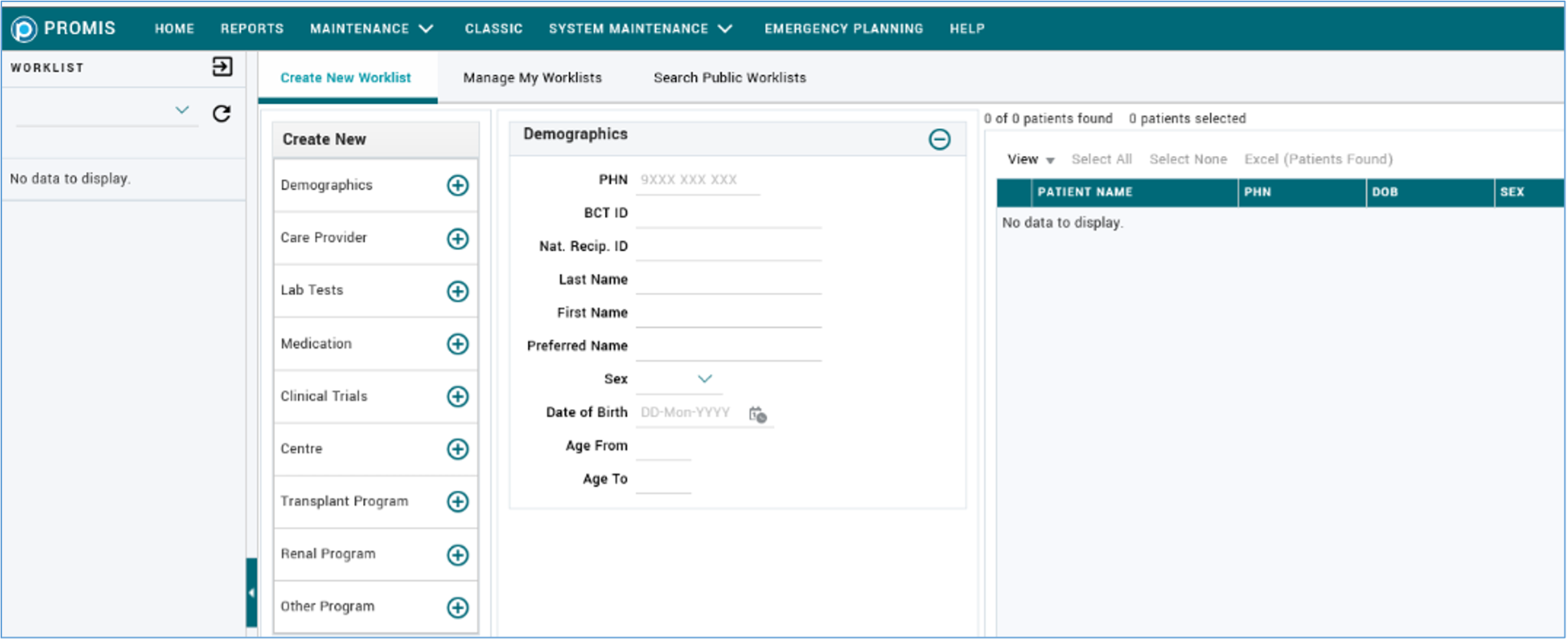
- Searching a patient by National Recipient ID: Users can search a patient by National Recipient ID in PROMIS 4, along with other identifiers.
- Searching a patient by National Recipient ID and/or BCT ID in Patient Worklist: National Recipient ID and BCT ID fields are available to search under the Demographics section in Patient Worklist module.
PROMIS 4 > Open Pane on left-side > select Create Worklist > select Demographics
Immunizations History & Report
PROMIS 4 > Patient Record> Orders/Results > Pt Infectious Status/Immunization Hx
- All vaccine brands can be manually added.
- Mode column displays on the right in the Summary.
- Infectious labs included:
- Hep C NAT
- IGRA
- HIV Ab/Ag
- Measles
- Mumps
- Rubella
- Syphilis
- VZV
- HSV
PROMIS 4 > Center & Worklist > Immunization Reports
- Multiple vaccines can be selected for report parameters.
- Series column displays vaccine series.
- Next Dose/Cancelled/Refused Date is in the context of each vaccine row.
- Vaccination site is used as an additional identifier to prevent duplicate records in cases of same date and series which are administered in multiple sites.
Integrated Assessment: updated based on HD/HHD Prescription changes
PROMIS Classic > Monitoring > Integrated Assessment
- Integrated Assessment form updated based on HD/HHD prescription changes:
- HCO3, CA, MG, K, NA values allow fractions “/” and decimal “.” numeric entry
- Dialysate Type included
- Cancelled prescriptions excluded
- Print Clinic Visit Orders and Print reports updated to include Dialysate Type and to display fraction and decimal values for HCO3, CA, MG, K, NA.
- Dialyzer machine displays based on active prescription.
Post-COVID 19 Recovery (PCR)
- PCR Questionnaire: Clinic Visit date can be future dated in Baseline and Follow-up questionnaires. PROMIS 4 > Patient Chart > Assessment > Post COVID-19 Questionnaire.
- SUPPORT-17073 Diagnostic Results: FVC should be equal or greater than FEV1 in PROMIS 4> Patient Chart > Diagnostic Results > Pulmonary Function.
- SUPPORT-17356 Centres: PCR clinics with “Schedule” naming are differentiated from existing clinic centers.
Other Improvements
- Visual enhancements across the application include a dynamic mini-banner, reduced white space, improved text size and field label positioning in a number of modules.

- Physical Examination: Add Physical Exam section include field values for Heart Rate and SPO2.
- SPH Dialysis Weekly Schedule with Cerner’s data pulled to PROMIS, displays multiple appointments of a patient in same week in one row for select parameters, allowing users to print report with least number of pages.
- Patient Clinical Summary report: Reflects Dialysis Prescription updates. Classic > Reports > Patient Clinical Summary
- HCO3, CA, MG, K, NA values allow fractions “/” and decimal “.” numeric entry.
- Cancelled prescriptions excluded.
- Latest event notes display on top (all notes can be viewable in PROMIS4).
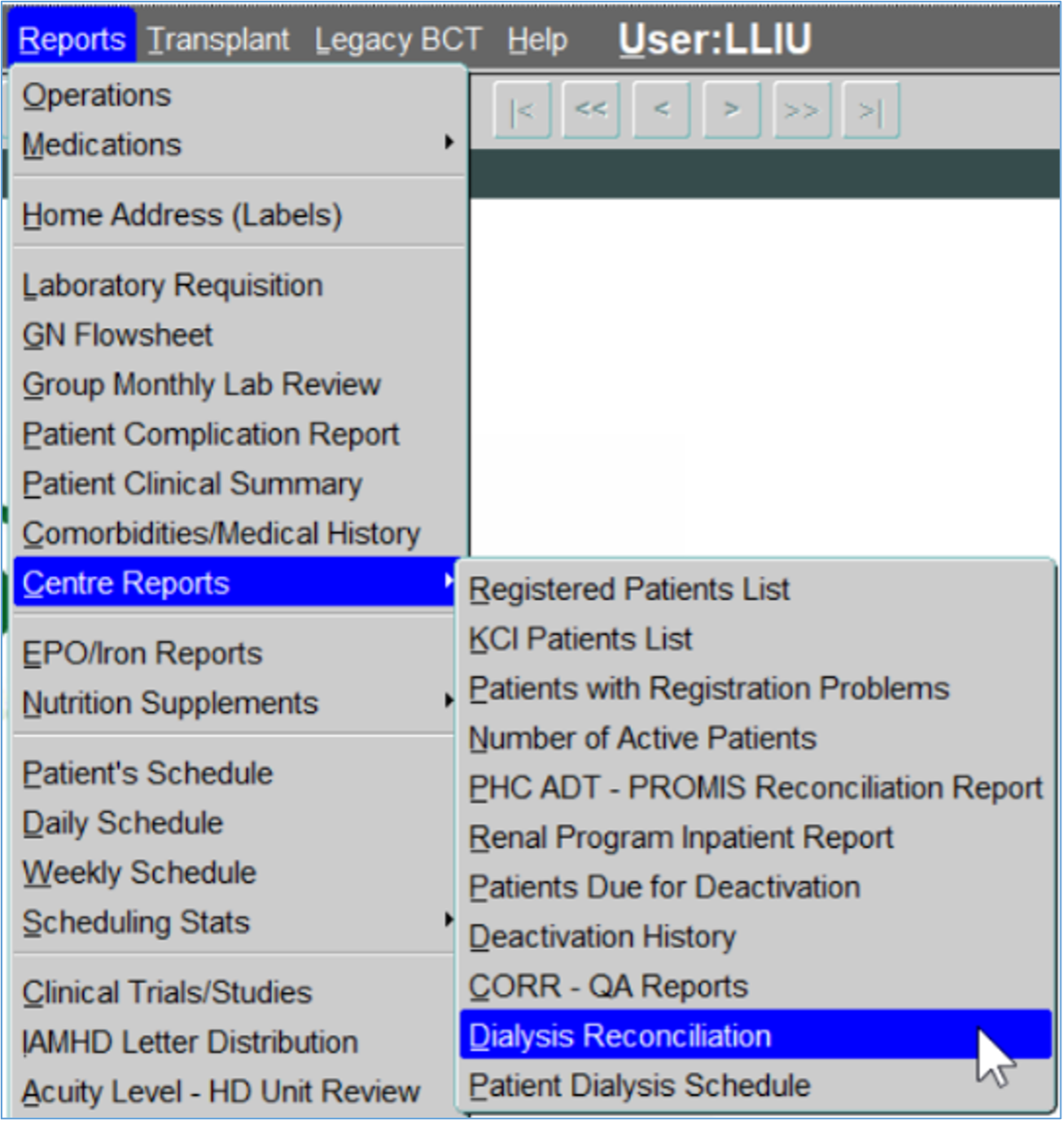
- Location for Dialysis Reconciliation and Dialysis Schedule reports: The Dialysis Reconciliation and Dialysis Schedule reports can be accessed using the following path: Classic > Reports > Centre Reports.
Resolved Issues
Biopsy
Patient chart > Orders/Results > Biopsy
- Primary Biopsy Result values added or updated:
- ‘Focal Segmental Glomerulosclerosis, secondary but no cause identified’ (updated)
- ‘Focal Segmental Glomerulosclerosis’ (updated)
- ‘Focal Segmental Glomerulosclerosis, secondary to a cause not otherwise specified’ (new)
- ‘Please Specify’ field is mandatory when value is selected
Other Resolved Issues
- Lab Graph: Multiple lab results can be graphed in PROMIS 4 > Orders/Results > Lab Graph.
- Program Registration: Primary nephrologist can be searched and added in PROMIS 4 > Patient Info > Program Registration > Add: Provincial Renal Agency > Primary Nephrologist field.
- Diagnostic Results: Formatting is applied to date and time in PROMIS 4 > Orders / Results > Diagnostic Results.
- SUPPORT-16997 Lab Flowsheet Date: The comma in the Labs Flow Sheet dates have been removed.
- PROMIS Password expiry message: The PROMIS password expiry email message has been updated with instructions on where to change one’s password.